Product: Power BI visuals, MicroStrategy visuals
Related Product Version: all
Last Updated: August 1, 2024
Summary
After purchasing one of the SCvation organizational visual packages your company’s contact person will be provided with login credentials for the SCvation Customer Portal. These credentials allow access to a dedicated download area for your visual package.Action
- Note the username and password you received by email. These will be sent in two separate emails, for security reasons. Only your company’s contact person receives them and is responsible for distributing them to colleagues.
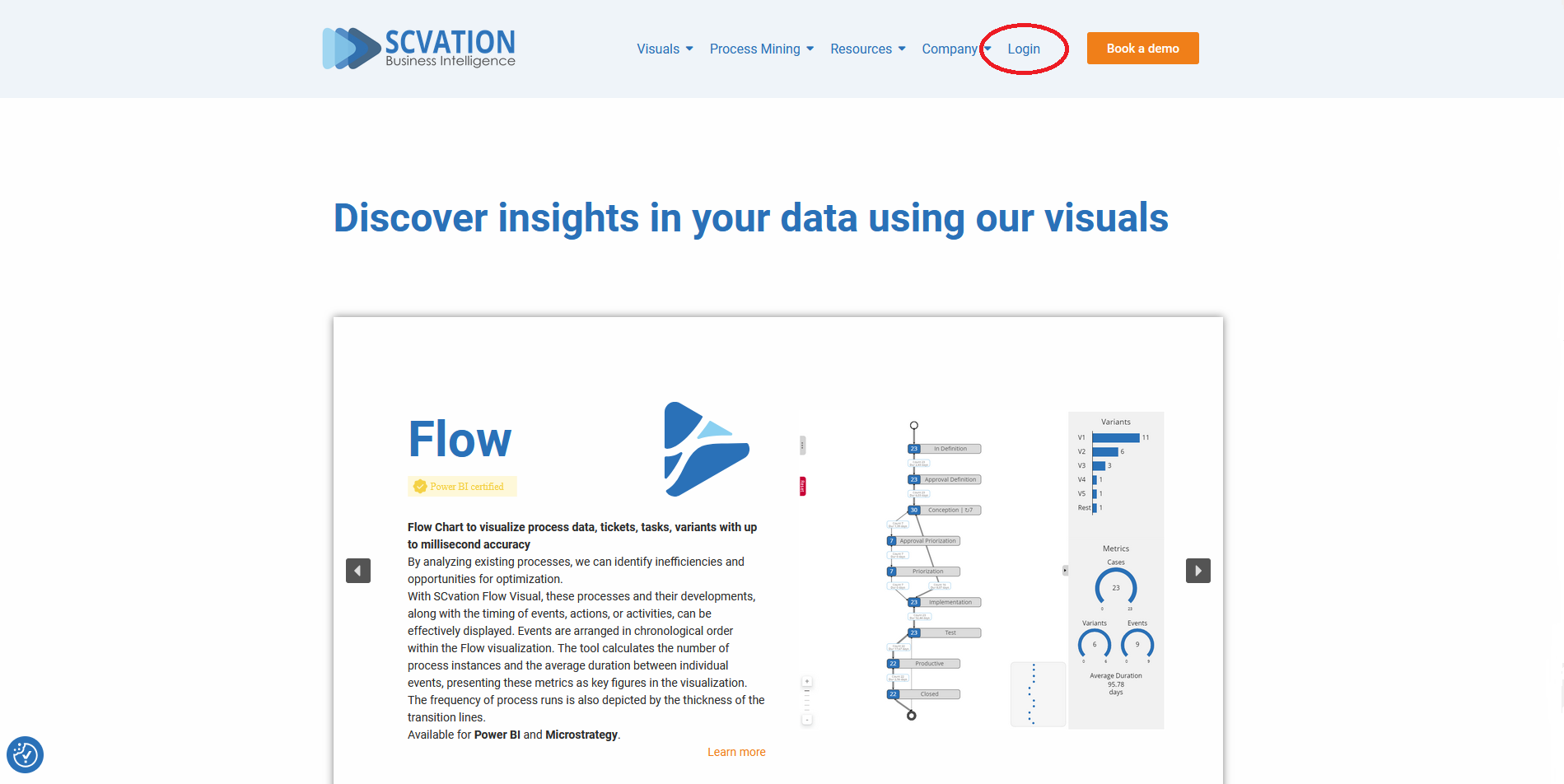
- Navigate to the login area on the SCvation website. The login button is at the top right of the SCvation website.
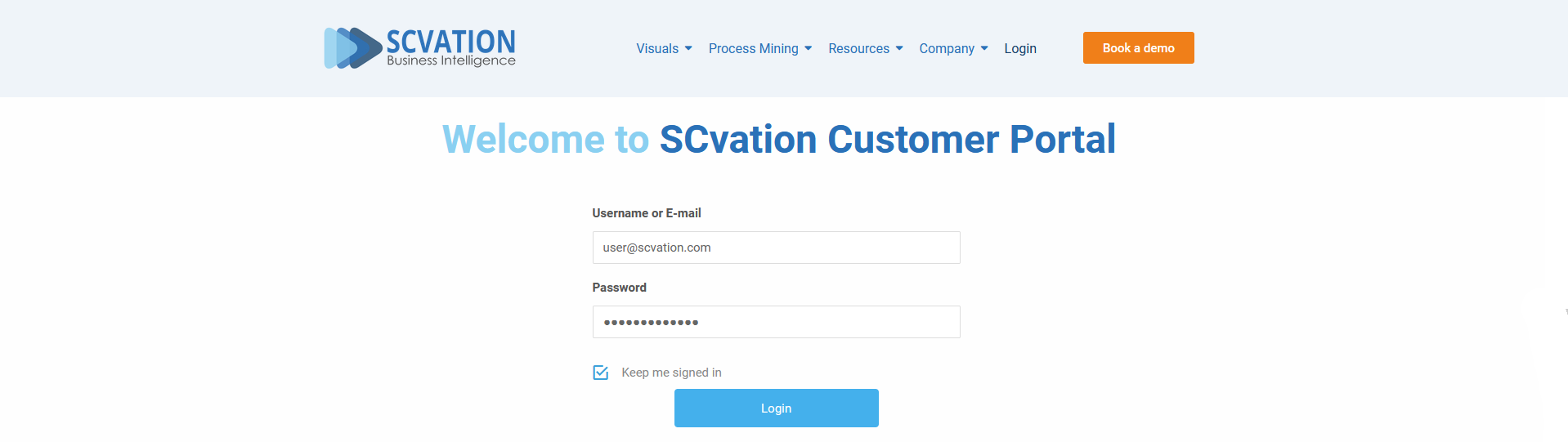
- Enter the username and password you received by email and click “Login”.
- Navigate to the download area in the SCvation Customer Portal.
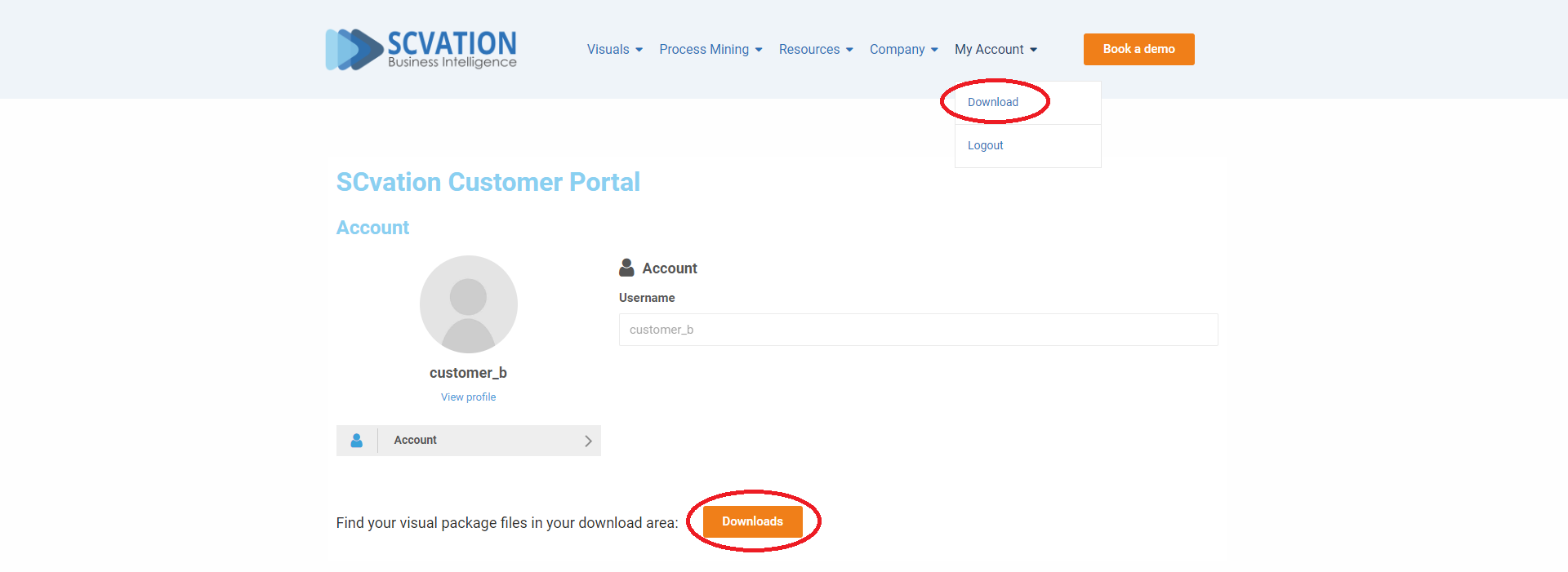
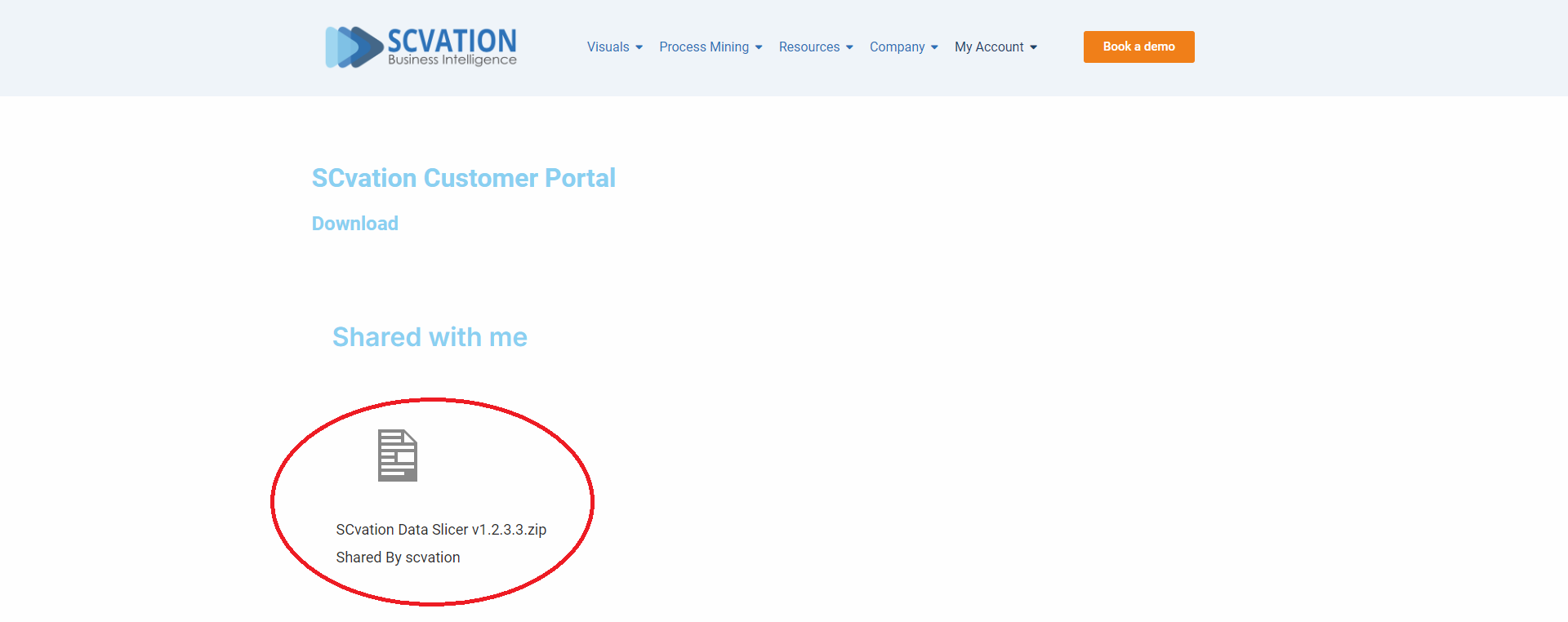
- Download the visual package available in the “Shared with me” section.
- Unzip the downloaded package in File Explorer. For Power BI visuals, the Zip package will contain a PBIVIZ file and the visual’s logo.