Overview
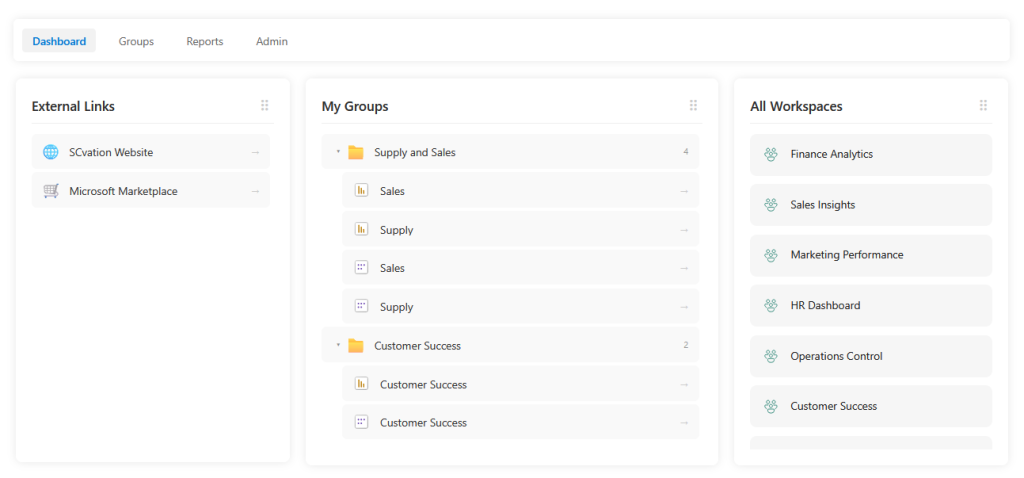
The Landing Page custom visual is the definitive solution for navigating complex Power BI tenants. Instead of jumping between workspaces, this visual provides a streamlined “Command Center” where users can access every report, dataset, dashboard, and app from one unified interface. It is designed specifically for organizations that need a professional, branded entry point for their end-users.
Important Disclaimer: This visual does not directly call the Power BI REST API; it functions as a data-driven interface that visualizes the workspace and item metadata provided within your own connected dataset (e.g., XLSX or Database).
 Key Benefits:
- Unified Tenant Overview: Display all your Power BI assets—Workspaces, Reports, Dashboards, and Apps—in one structured view, eliminating the need for constant browser navigation.
- Custom Logical Grouping: Break free from workspace silos. Create your own custom groups to bundle related reports and datasets together, regardless of where they are stored in the service.
- Integrated Custom Links: Extend your portal beyond Power BI by adding custom URLs. Link directly to documentation, external websites, or internal tools alongside your data assets.
Dropzones
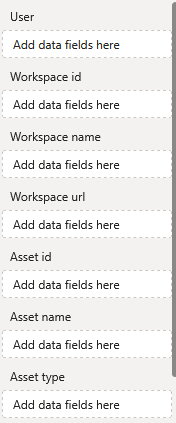
User — 1 x Attribute
In this Field should be the Power BI USERPRINCIPALNAME().
Workspace id — 1 x Attribute
Workspace name — 1 x Attribute
Workspace url — 1 x Attribute
Asset id — 1 x Attribute
Asset name — 1 x Attribute
Asset type — 1 x Attribute
Formatting settings
Style
General
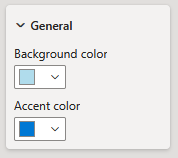
Background color
Define the Background color of the visual.
Accent Color:
Define the Accent color of the visual.
Dashboard
Favorites
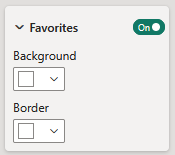
 Show Favorites:
Disable or enable the favorites box on the Dashboard.
Background:
Set the Background color of the box.
Border:
Set the Border color of the box.
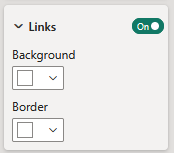
Links
 Show Links:
Disable or enable the favorites box on the Dashboard.
Background:
Set the Background color of the box.
Border:
Set the Border color of the box.
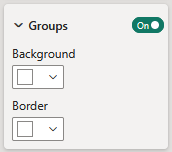
Groups
 Show Groups:
Disable or enable the groups box on the Dashboard.
Background:
Set the Background color of the box.
Border:
Set the Border color of the box.
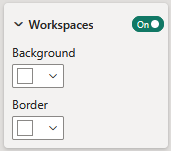
Workspaces
 Show Workspaces:
Disable or enable the workspaces box on the Dashboard.
Background:
Set the Background color of the box.
Border:
Set the Border color of the box.
Dynamic icons:
A switch when pressed leads the user to the dynamic icons settings.
Settings
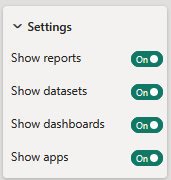
Settings
 Show reports:
Enable or disable the visibility of reports.
Show datasets:
Enable or disable the visibility of datasets.
Show dashboards:
Enable or disable the visibility of dashboards.
Show apps:
Enable or disable the visibility of apps.
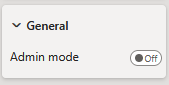
General
 Admin mode:
Enable or disable the Admin mode. In the Admin mode the User can add admins, configure groups and links.
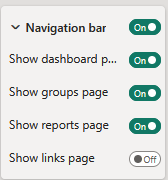
Navigation bar
Navigation bar
 Show Navigation bar:
Enable or disable the Navigation bar.
Show dashboard page:
Enable or disable the dashboard page.
Show groups page:
Enable or disable the groups page.
Show reports page:
Enable or disable the reports page.
Show links page:
Enable or disable the links page.

License
Information about the currently active license.
The visual includes an advanced licensing implementation, allowing it to work with both Microsoft AppSource plans, as well as custom license keys issued directly by SCvation GmbH. Additionally, the visual can be used free of charge, under the constraints of the free tier restrictions.
 License type
Displays the type of the currently active license, as well as the progress when activating a new custom license.
The following license types are possible:
- Free — This license type is displayed if no license is available, i.e. no AppSource license has been assigned to your Microsoft/Power BI user and the visual has not been activated with a custom license key. All restrictions of the free tier apply for this license type.
- AppSource License Plan — This license type is displayed if your Microsoft/Power BI user has an assigned AppSource license for the visual. After purchasing a plan on AppSource, the licenses need to be assigned in the Microsoft 365 Admin Center. Please note that because this license type is bound to the currently logged in user, it does not guarantee that all report viewers will have a valid license as well. Report viewers that do not have an AppSource license assigned will be subject to all restrictions of the free tier as well.
- Licensee Custom License — This license type is displayed if a SCvation provided license key was used to activate the visual, and the license key has not yet expired. Licensee will usually be your company’s name. This license type guarantees that all report viewers can use the visual without restrictions, as the license is bound to the visual instance itself and not to specific users.
Additionally, you may encounter the following messages in this text field, when trying to activate the visual using a custom license key:
- Validating… — This message is displayed if the visual is currently validating the custom license key. If the validation succeeds, the correct license type (see above) will be shown again and the expiry date will be adjusted. Should there be a problem with the validation, one of the below error messages will be displayed instead. No internet access is required to validate a custom license key.
- Expired — This error message is displayed if the stored custom license key expired. This can either happen when trying to validate an already expired key, or if a previously valid key has since expired. This error message is permanent and will only go away by validating a different custom license key. If a custom license key expires, the visual will still work, although under the restrictions of the free tier.
- Invalid License Key — This error message is displayed if the given text is not a valid license key. After a few seconds the correct license type (see above) type will be shown again.
- Invalid Product — This error message is displayed if the given text is a valid custom license key, but for the wrong SCvation product. After a few seconds the correct license type (see above) will be shown again.
License expiry date
If the visual is activated via a license key from SCvation GmbH, you will find the date on which the license expires here.
License key input
License keys purchased from SCvation GmbH can be imported here to activate the visual and remove the free tier restrictions.
Free tier restrictions
Licensed feature
When a valid license is detected, all features of the Dynamic Icon Visual are fully available without restrictions.
Without a license, settings marked as “Licensed Feature” (indicated by an asterisk * in the formatting pane) cannot be modified. Attempting to change these settings will trigger a notification and a watermark within the visual. These indicators are removed automatically when all licensed features are reset to their default values and the data limit has not been exceeded.
This setup enables you to explore and evaluate the full functionality of the Dynamic Icon visualization before purchasing a license.