SCvation – Business Intelligence

Table of Contents
    Add a header to begin generating the table of contents
    Scroll to Top

    Overview

    A high-performance, IBCS-compliant table visual for Power BI featuring advanced hierarchical grouping, dynamic micro-charts, and pixel-perfect rendering for executive-ready reporting.
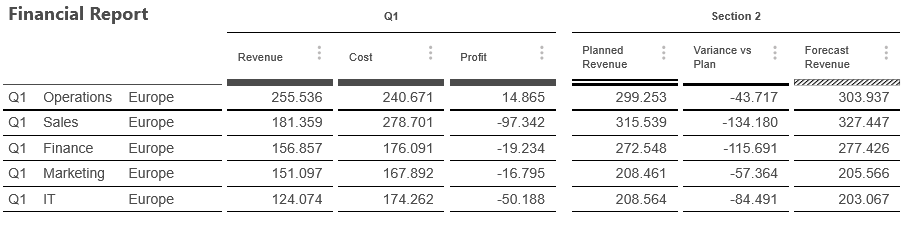
    Unlock professional-grade reporting in Power BI with the table_pbi visual by SCvation. Designed specifically for financial analysts, business controllers, and executive stakeholders, this visual bridges the gap between traditional spreadsheets and interactive business intelligence, offering unparalleled control over data presentation.

    Key Benefits:

    • IBCS Compliance: Automatically standardize your reports with built-in International Business Communication Standards (IBCS) templates.
    • Intelligent Name Detection: Instantly identify data columns based on names (e.g., “Actual”, “Plan”, “Forecast”) and apply standardized IBCS styles.
    • Dynamic Micro-Chart Visualization: Visualize trends and variances directly within table cells using integrated bars, pins, and symbols.
    • Flexible Hierarchies: Multi-level grouping with “Top-N” and “Rest” row aggregation.
    • Attribute-Level Custom Styling: Apply specific colors, fonts, and styles to individual values or entire levels of your hierarchy for maximum emphasis.
    • Advanced Calculation Engine: Go beyond standard totals with support for Average, Minimum, Maximum, and custom formula-based totals (e.g., Metric A / Metric B).
    • Multi-Section Organization: Group your metrics into up to 5 distinct sections, each with independent headers, borders, and formatting rules.
    • Enterprise Ready: Optimized for up to 30,000 rows with integrated license management.

    Dropzones

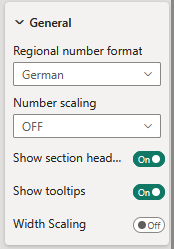
    • Rows
      • Defines which categories the data will be divided into.
    • Section 1 – Header
      • 1 x Attribute
      • Display text for section 1
    • Section 1 – Values
      • Contains the values for section 1
    • Section 2 – Header
      • 1 x Attribute
      • Display text for section 2
    • Section 2 – Values
      • Contains the values for section 2
    • Section 3 – Header
      • 1 x Attribute
      • Display text for section 3
    • Section 3 – Values
      • Contains the values for section 3
    • Section 4 – Header
      • 1 x Attribute
      • Display text for section 4
    • Section 4 – Values
      • Contains the values for section 4
    • Section 5 – Header
      • 1 x Attribute
      • Display text for section 5
    • Section 5 – Values
      • Contains the values for section 5

    Formatting settings

    Table

    General
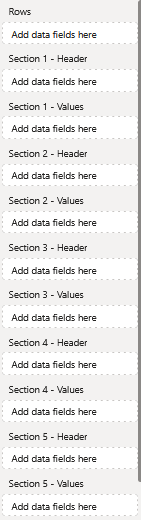
    Regional number format:

    Decide the regional number format
    The following options are available:

    • German
      •  300000 -> 300.000
    • English
      • 300000 -> 300,000

    Number scaling:

    The following options are available:

    • OFF
      •  The Values dont change
    • Thousand
      • The values get multiplied by 1.000
    • Million
      • The values get multiplied by 1.000.000
    • Billion
      • The values get multiplied by 1.000.000.000

    Show section headers:

    Enables or disables section headers


    Show tooltips:
    Enables or disables tooltips if hovering over the microchart

    Width scaling:

    When activated the Table always fits based on the width of the visual

    Main title

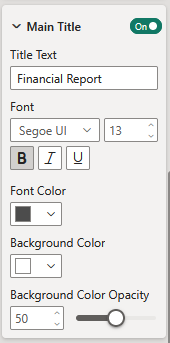
    Show main title:

    Disable or enable the maintitle

    Title:

    Maintitle displayname

    Font:
    Setting of the font.
    There is a large selection of different fonts, provided by Power BI.

    Font color:
    Set the font color using Power BI’s built-in color selector.

    Color selection options:

    • Choose a color from the Power BI color theme using the color picker buttons.

    Background color:
    Set the background color using Power BI’s built-in color selector.

    Background color opacity:
    The opacity setting lets you control how transparent the text appears. A value of 0 means the text is fully opaque (non-transparent), while 100 makes it completely transparent.

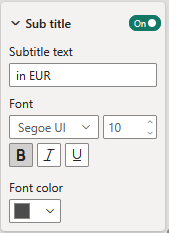
    Subtitle
    Show subtitle:

    Disable or enable the subtitle.

    Title:

    Subtitle displayname

    Font:
    Setting of the font.
    There is a large selection of different fonts, provided by Power BI.

    Font color:
    Set the font color using Power BI’s built-in color selector.

    Color selection options:

    • Choose a color from the Power BI color theme using the color picker buttons.
    Totals
    Show totals:

    Enable or disable Totals

    Title:

    Totals displayname

    Rest

    Show rest:

    Enable or disable Rest

    Title:

    Rest displayname

    Number of detail:

    This option defines how many rows are shown in the table.

    Column
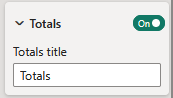
    Cut text:

    • ON
      • The text gets automatically cut if there is no space
    • OFF
      • The text gets automatically split into multiple rows

    IBCS name detection:

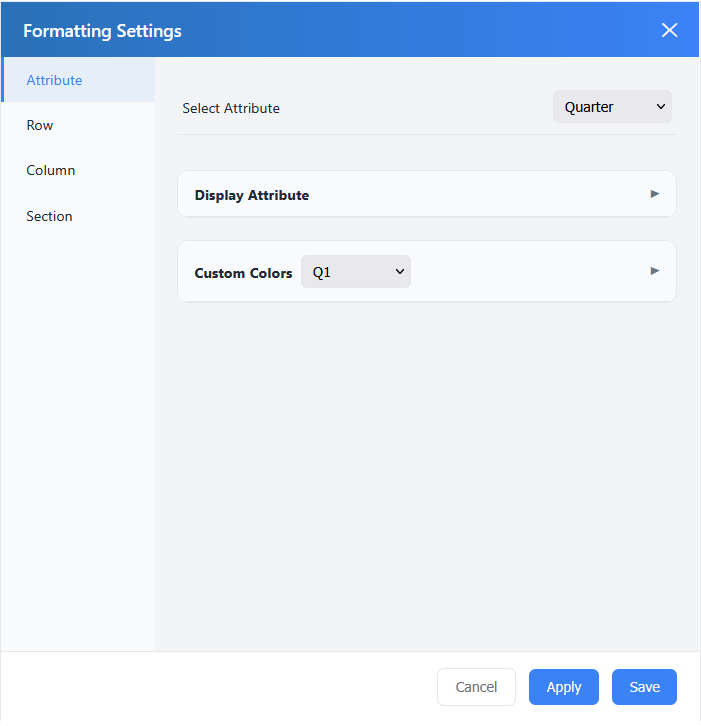
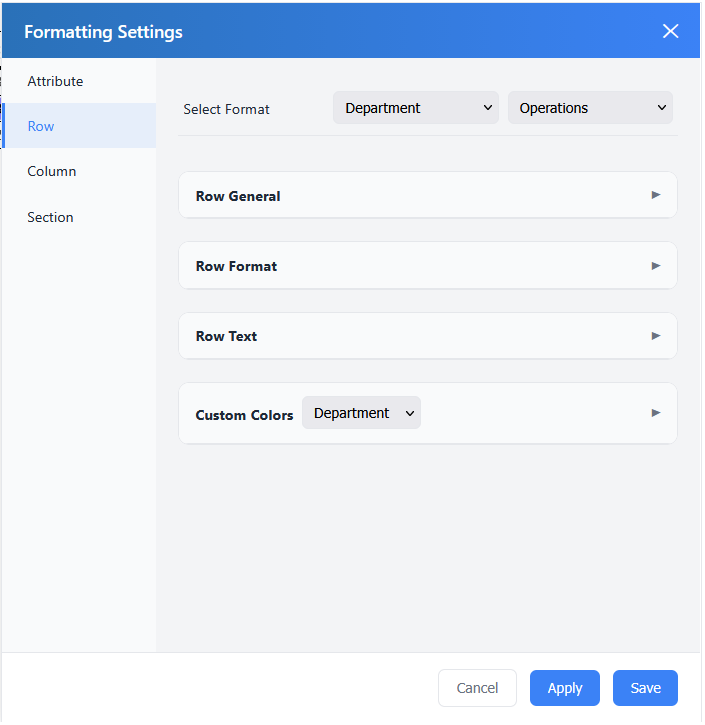
    If once enabled the the column titles get checked and compared with predefined keywords. If the keywords match as an example “plan” then the column gets the “plan” template. This template can manually be set in the Table Formatting Settings in Column -> Column Format -> IBCS Template

    Column menu button:

    Enable or disable the menu button in each column header.

    Formatting Settings

    Show Axis:
    This setting lets the user choose, whether the visual should have an Axis, what information that Axis should include will be set under General.

    General

    General settings for the axis of the visual can be adjusted in the options menu Axis > General.

    Axis postion:
    The position of the Axis can be set “Bottom” or “Top”.

    Axis type:
    The Axis type can be “Absolute time” or “Relative time”.

    Timeline end:

    This setting defines the end of the timeline.

    • Auto
    • Today
    Label

    In the options menu Axis > Label, settings for the Label of the Axis can be adjusted.

    Show line:
    The toggle on the right allows you to hide or show the line of the Axis.

    Value format:
    This setting sets the format of the displayed dates. You can choose from:

    • PowerBI Format
    • SCvation Format
    • Total number

    Time zone:
    Set the time zone – UTC or Local

    Font:
    Setting of the font of the Axis label.
    There is a large selection of different fonts provided by Power BI.

    Font size:
    Set the font size for the Axis label.
    A range of font sizes is available to suit different layout needs and preferences, with selectable values from 6 pt to 60 pt.

    Font weight:
    Setting the font weight for the Axis label:

    • Normal
    • Bold

    Font color:
    Setting the font color for the Axis label.

    Color selection options:

    • Choose a color from the Power BI color theme using the color picker buttons.
    • For more precise customization, enter a hex code directly into the text field within the color picker to define a specific color.

    Transparency:
    The transparency function lets you control how transparent the Axis label appears. A value of 0 means the Axis label is fully opaque (non-transparent), while 100 makes it completely transparent.

    !Notice the following three options are only available when Total Numbers is chosen above in the Value Settings!

    Value scaling (Total number):
    Here you can set how you want the Axis label to be scaled. This can be set to milliseconds, seconds, minutes, hours, days, weeks, months or years.

    Show unit:
    Enable/Disable the unit next to the Axis label.

    Decimal places (Total number):
    Setting the number of decimal places of the Axis label.

    Line

    In the options menu Axis > Label, settings for the line of the Axis can be adjusted.

    Line width:
    Setting the width of the line from 1 to 4. 

    Line color:
    Setting the font color for the line.

    Color selection options:

    • Choose a color from the Power BI color theme using the color picker buttons.
    • For more precise customization, enter a hex code directly into the text field within the color picker to define a specific color.

    Transparency:
    The transparency setting lets you control how transparent the line appears. A value of 0 means the line is fully opaque (non-transparent), while 100 makes it completely transparent.

    Gridlines

    Show Gridlines:
    The Button on the right allows you to hide or to show the Gridlines.

    Vertical

    In the options menu Gridlines > Vertical, settings for the Vertical Gridlines can be adjusted.

    Show Vertical Gridlines:
    Set whether the Vertical Gridlines should be displayed.

    • ON
      • The Vertical Gridlines are displayed.
    • OFF
      • The Vertical Gridlines are not displayed.

    Line style:
    Choose between a Solid, Dashed or Dotted style for the gridlines.

    Line width:
    Setting the width of the line from 1 to 4. 

    Line color:
    Setting the font color for the Gridlines.

    Color selection options:

    • Choose a color from the Power BI color theme using the color picker buttons.
    • For more precise customization, enter a hex code directly into the text field within the color picker to define a specific color.

    Transparency:
    The transparency setting lets you control how transparent the Gridlines appear. A value of 0 means the Gridlines are fully opaque (non-transparent), while 100 makes it completely transparent.

    Horizontal (Parent category)

    In the options menu Gridlines > Horizental (Parent category), settings for the horizontal Gridlines of the Parent category can be adjusted.

    Line style
    Choose between a Solid, Dashed or Dotted style for the gridlines.

    Line width:
    Setting the width of the line from 1 to 4. 

    Line color:
    Setting the font color for the Gridlines.

    Color selection options:

    • Choose a color from the Power BI color theme using the color picker buttons.
    • For more precise customization, enter a hex code directly into the text field within the color picker to define a specific color.

    Transparency:
    The transparency setting lets you control how transparent the Gridlines appear. A value of 0 means the Gridlines are fully opaque (non-transparent), while 100 makes it completely transparent.

    Horizontal (Category)

    In the options menu Gridlines > Horizental (Category), settings for the horizontal Gridlines of the Category can be adjusted.

    Line style
    Choose between a Solid, Dashed or Dotted style for the Gridlines.

    Line width:
    Setting the width of the line from 1 to 4. 

    Line color:
    Setting the font color for the Gridlines.

    Color selection options:

    • Choose a color from the Power BI color theme using the color picker buttons.
    • For more precise customization, enter a hex code directly into the text field within the color picker to define a specific color.

    Transparency:
    The transparency setting lets you control how transparent the Gridlines appear. A value of 0 means the gridlines are fully opaque (non-transparent), while 100 makes it completely transparent.

    Current timestamp

    Show Current timestamp:
    The toggle on the right allows you to enable/disable the Current timestamp.

    Line

    Style:
    Choose between a Solid, Dashed or Dotted style for the Current timestamp Line.

    Width:
    Setting the width of the Line from 1 to 4. 

    Color:
    Setting the color for the Current timestamp Line.

    Color selection options:

    • Choose a color from the Power BI color theme using the color picker buttons.
    • For more precise customization, enter a hex code directly into the text field within the color picker to define a specific color.

    Transparency:
    The transparency setting lets you control how transparent the Line of the Current timestamp appears. A value of 0 means the Line is fully opaque (non-transparent), while 100 makes it completely transparent.

    Label

    Show Label:
    The toggle on the right allows you to enable/disable the Current timestamp label.

    Alignment:
    Choose between the options Left, Center and Right to position the Current timestamp label.

    Replacement text:
    Choose which text is shown instead of the default value. The default value is the Current timestamp. The format of the Current timestamp depends on the format that is set for the Start Time data field.

    Font:
    Setting of the font of the Current timestamp label.
    There is a large selection of different fonts, provided by Power BI.

    Font size:
    Set the font size for the Current timestamp label.
    A range of font sizes is available to suit different layout needs and preferences, with selectable values from 6 pt to 60 pt.

    Font weight:
    Setting the font weight for the Current timestamp label

    • Normal
    • Bold

    Text color:
    Set the font color using Power BI’s built-in color selector.

    Color selection options:

    • Choose a color from the Power BI color theme using the color picker buttons.
    • For more precise customization, enter a hex code directly into the text field within the color picker to define a specific color.

    Transparency:
    The transparency setting lets you control how transparent the text appears. A value of 0 means the text is fully opaque (non-transparent), while 100 makes it completely transparent.

    Label box

    Show Label box:
    The buttom on the right allows you to turn the Label box on or off.

    Background color:
    Choose a background color for your Label box. 

    Line width:
    Set the border width of the Label box from 0 to 4.

    Line color:
    Set the border color for the Current timestamp Label box.

    Color selection options:

    • Choose a color from the Power BI color theme using the color picker buttons.
    • For more precise customization, enter a hex code directly into the text field within the color picker to define a specific color.

    Transparency:
    The transparency setting lets you control how transparent the Label box appears. A value of 0 means it is fully opaque (non-transparent), while 100 makes it completely transparent.

    Legend

    In this card, settings regarding the Legend can be adjusted.

    Show Legend:
    The toggle on the right allows you to enable/disable the Legend.

    General

    Alignment:
    Align the Legend to the left, center or right.

    Titel

    Show titel:
    The buttom on the right allows you to turn the titel text of the Legend on or off.

    Text:
    Set the title for the Legend.

    Font:
    Setting of the font of the Legend title.
    There is a large selection of different fonts, provided by Power BI.

    Font size:
    Set the font size for the Legend title.
    A range of font sizes is available to suit different layout needs and preferences, with selectable values from 6 pt to 60 pt.

    Font weight:
    Setting the font weight for the text:

    • Normal
    • Bold

    Text color:
    Set the font color using Power BI’s built-in color selector.

    Color selection options:

    • Choose a color from the Power BI color theme using the color picker buttons.
    • For more precise customization, enter a hex code directly into the text field within the color picker to define a specific color.

    Transparency:
    The transparency setting lets you control how transparent the Legends title appears. A value of 0 means it is fully opaque (non-transparent), while 100 makes it completely transparent.

    Label

    Font:
    Setting of the font of the Label.
    There is a large selection of different fonts, provided by Power BI.

    Font size:
    Set the font size for the Label.
    A range of font sizes is available to suit different layout needs and preferences, with selectable values from 6 pt to 60 pt.

    Font weight:
    Setting the font weight for the Label:

    • Normal
    • Bold

    Text color:
    Set the font color using Power BI’s built-in color selector.

    Color selection options:

    • Choose a color from the Power BI color theme using the color picker buttons.
    • For more precise customization, enter a hex code directly into the text field within the color picker to define a specific color.

    Transparency:
    The transparency setting lets you control how transparent the Label appears. A value of 0 means it is fully opaque (non-transparent), while 100 makes it completely transparent.

    Tooltips

    Show Tooltips:
    The toggle on the right allows you to enable/disable the Tooltips.

    Advanced

    Batch load

    The Batch Load feature improves performance by rendering the visual in smaller batches rather than loading the entire dataset at once. This reduces the initial load time of both the visual and the report. As users scroll to the bottom of the visual or click a designated button, additional data is dynamically loaded and displayed.

    Level:
    Specifies the granularity at which data loading is limited:

    • All: Loads the entire dataset.
    • Parent category: Loads a specified number of parent categories.
    • Category: Loads a specified number of categories.

    Batch size:
    Defines the number of parent categories or categories to load initially. As users scroll to the bottom of the visual, the next batch is automatically loaded based on this setting.

    Notifications

    Show Notifications:
    Set whether Notifications should be displayed.

    • ON
      • The Notifications are displayed.
    • OFF
      • The Notifications are not displayed.

    License Notifications cannot be disabled!

    Quick Menu

    Show Quick Menu:

    This setting lets the user enable a Quick menu on the left side of the visual to have quick access to certain features. Which settings that Quick Menu should include will be set under Settings.

    Settings

    Show collapse

    With this option all categories can be expanded or collapsed at once.

    • On
    • Off

    License

    Information about the currently active license.

    The visual includes an advanced licensing implementation, allowing it to work with both Microsoft AppSource plans, as well as custom license keys issued directly by SCvation GmbH. Additionally, the visual can be used free of charge, under the constraints of the free tier restrictions.
    License type

    Displays the type of the currently active license, as well as the progress when activating a new custom license.

    The following license types are possible:

    • Free
      This license type is displayed if no license is available, i.e. no AppSource license has been assigned to your Microsoft/Power BI user and the visual has not been activated with a custom license key. All restrictions of the free tier apply for this license type.
    • AppSource License Plan
      This license type is displayed if your Microsoft/Power BI user has an assigned AppSource license for the visual. After purchasing a plan on AppSource, the licenses need to be assigned in the Microsoft 365 Admin Center. Please note that because this license type is bound to the currently logged in user, it does not guarantee that all report viewers will have a valid license as well. Report viewers that do not have an AppSource license assigned will be subject to all restrictions of the free tier as well.
    • Licensee Custom License
      This license type is displayed if a SCvation provided license key was used to activate the visual, and the license key has not yet expired. Licensee will usually be your company’s name. This license type guarantees that all report viewers can use the visual without restrictions, as the license is bound to the visual instance itself and not to specific users.

    Additionally, you may encounter the following messages in this text field, when trying to activate the visual using a custom license key:

    • Validating…
      This message is displayed if the visual is currently validating the custom license key. If the validation succeeds, the correct license type (see above) will be shown again and the expiry date will be adjusted. Should there be a problem with the validation, one of the below error messages will be displayed instead. No internet access is required to validate a custom license key.
    • Expired
      This error message is displayed if the stored custom license key expired. This can either happen when trying to validate an already expired key, or if a previously valid key has since expired. This error message is permanent and will only go away by validating a different custom license key. If a custom license key expires, the visual will still work, although under the restrictions of the free tier.
    • Invalid License Key
      This error message is displayed if the given text is not a valid license key. After a few seconds the correct license type (see above) type will be shown again.
    • Invalid Product
      This error message is displayed if the given text is a valid custom license key, but for the wrong SCvation product. After a few seconds the correct license type (see above) will be shown again.
    License expiry date

    If the visual is activated via a license key from SCvation GmbH, you will find the date on which the license expires here.

    License key input

    License keys purchased from SCvation GmbH can be imported here to activate the visual and remove the free tier restrictions.

    Edit Template

    Free tier restrictions

    Licensed feature
    When a valid license is detected, all features of the Process Gantt visualization are fully available without restrictions.

    Without a license, settings marked as “Licensed Feature” (indicated by an asterisk * in the formatting pane) cannot be modified. Attempting to change these settings will trigger a notification and a watermark within the visual. These indicators are removed automatically when all licensed features are reset to their default values and the data limit has not been exceeded.

    This setup enables you to explore and evaluate the full functionality of the Process Gantt visualization before purchasing a license.

    Data limits

    If a valid license is not detected, data rendering is limited. In this case, only the first 5 rows of the dataset are displayed in the visual.

    When this data limit is reached, a notification and watermark will appear within the visualization to indicate the restriction. These indicators are automatically removed once the dataset falls below the limit, and all “Licensed features” revert to their default state.