
Product: Power BI visuals
Related Product Version: all
Last Updated: August 29, 2024
Summary
As a Fabric admin, the list of Power BI visuals in the organization’s store can be managed through the Organizational visuals tab in the Admin portal. This tab allows the addition or removal of visuals and decides which ones will automatically show up in the visualization pane for users in the organization. The visual package provided by SCvation, a .pbiviz file, needs to be uploaded to the Organizational visuals tab in the Admin portal.Action
- Start in the Admin Portal – Tab: Organizational visuals. Select Add visual > From a file.
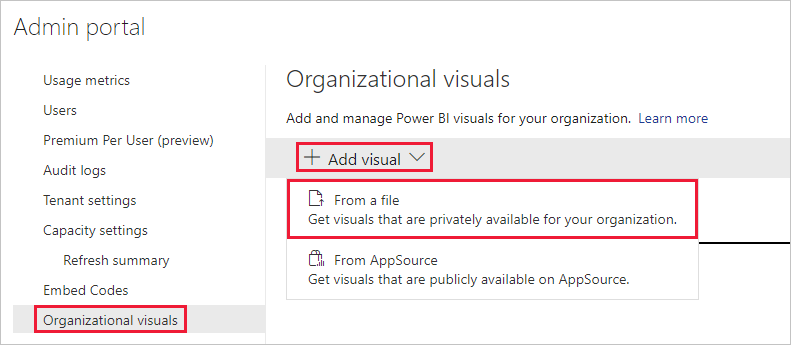
- Fill in the following fields in the popup window “Add Visual”:
- Choose a .pbiviz File: select the visual file to upload.
- Name Your Visual: provide a brief title.
- Icon: upload the visual icon file.
- Description: enter a short description.
- Access: control whether users can access the visual, and whether it’s visible in the visualization pane by default.
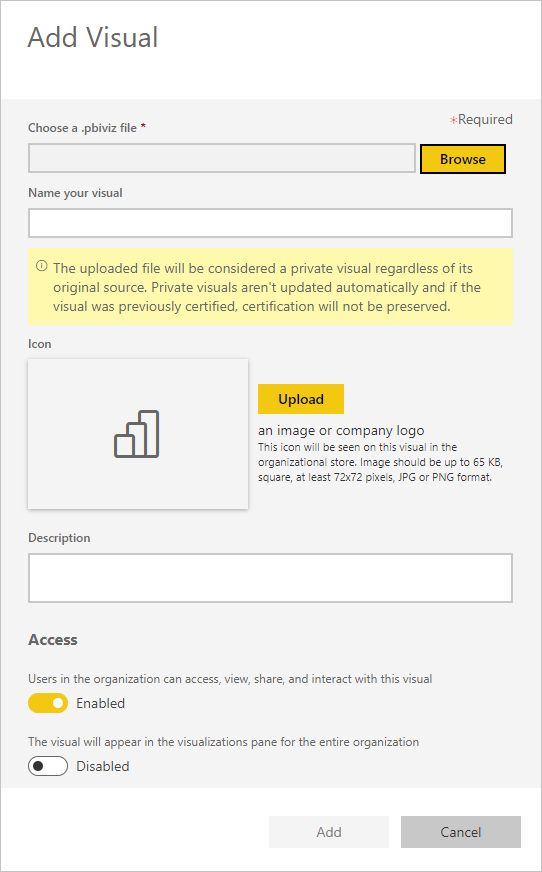
- To upload, click Add. Once the upload is complete, the visual will appear in the organizational visuals list.
