
Product: Power BI visuals
Related Product Version: all
Last Updated: December 19, 2024
Data Slicer Power BI date format based on regional settings
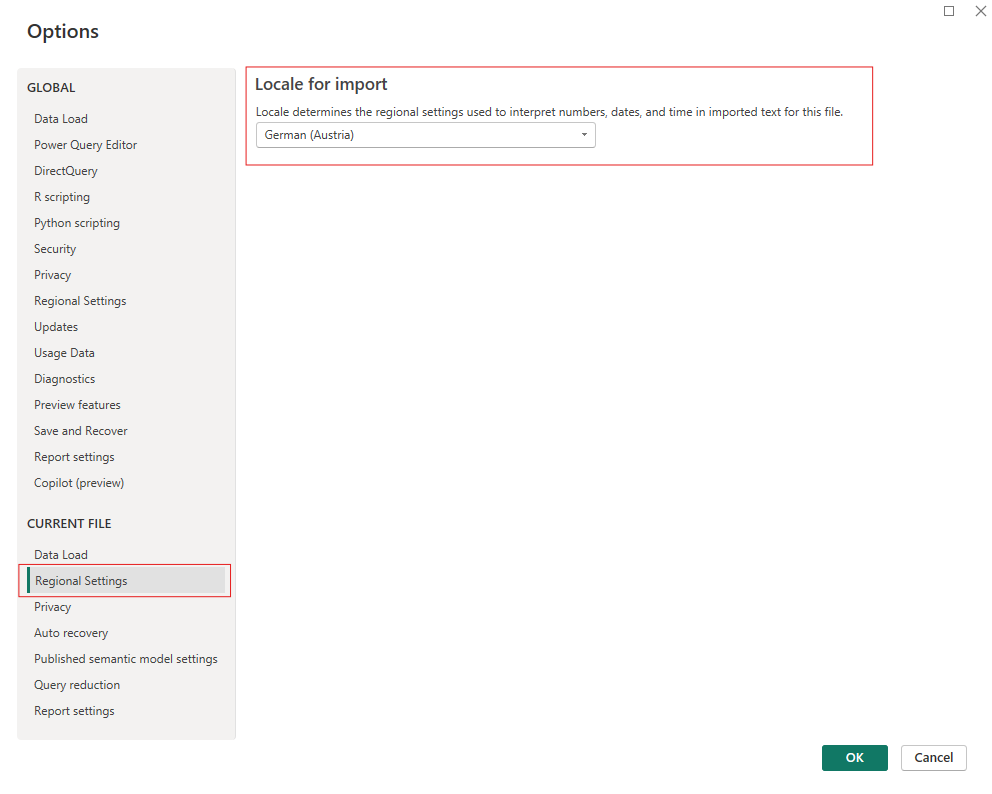
In our Power BI custom visuals (Data Slicer, Flow, Gantt), the numeric and date/datetime formats are determined by the settings you configure for the field in Power BI. These formats may vary depending on your regional settings. In Power BI Desktop, there are two types of regional settings that influence formatting:1. Current File Regional Settings: Locale for Import
This setting defines the locale used for data import and determines the format displayed in default Power BI visuals (e.g., tables).
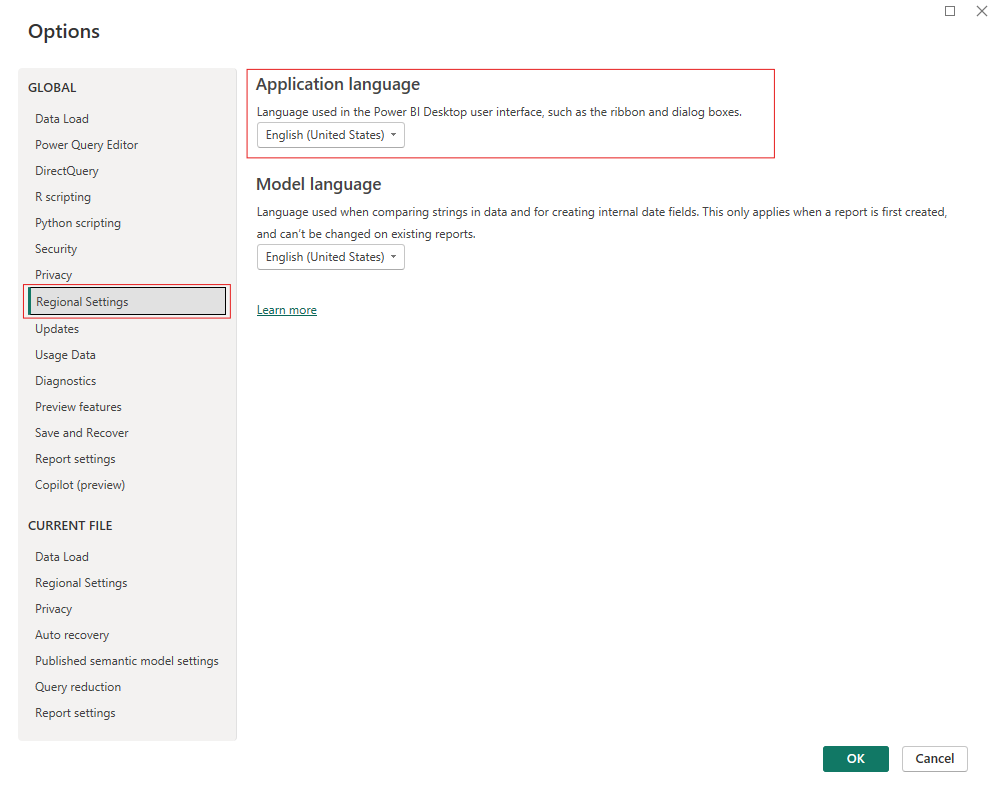
2. Global Regional Settings: Application Language
This setting specifies the application’s language and impacts the format used in our custom visuals, such as Data Slicer, Flow, and Gantt.
